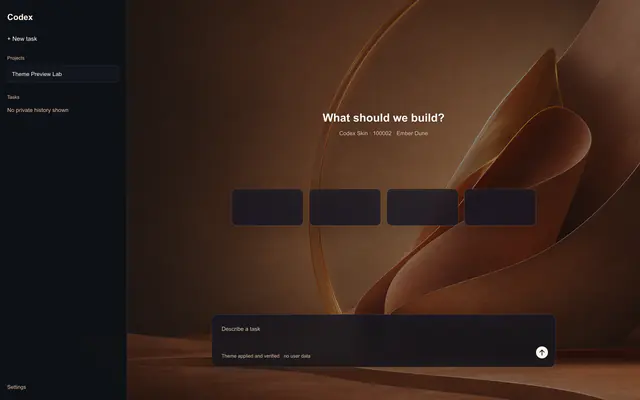
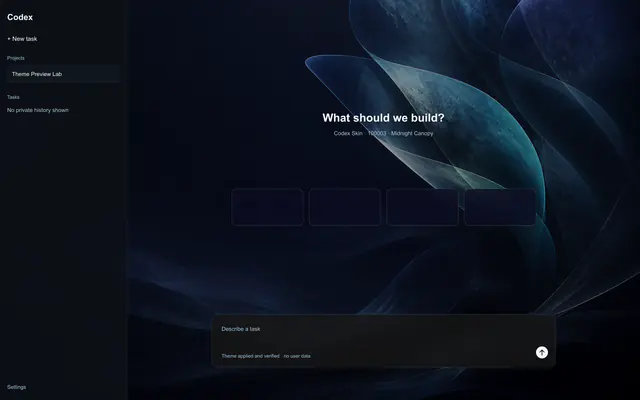
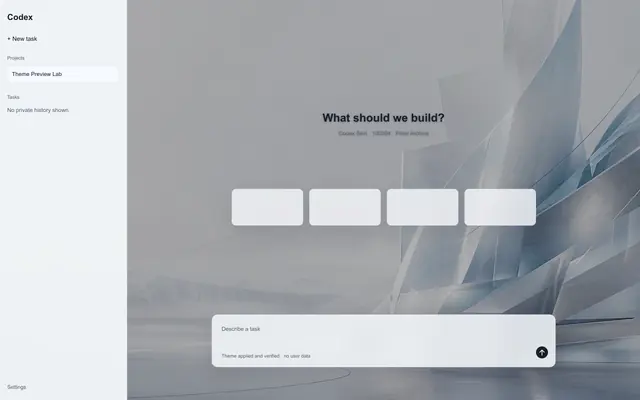
Use the Codex view in the ChatGPT desktop app
Codex Skin verifies the official app identity before it applies a new theme. It does not theme Chat, Work, ChatGPT on the web, the Codex CLI, or an IDE extension.

Install, apply, switch, restore
Choose a six-digit theme ID on this site, then use the free Codex Skin Plugin in the Codex view of the ChatGPT desktop app. The guided flow handles device approval, applies or switches the theme, and keeps an offline path back to the official interface.
macOS + Windows · verified and reversible
Before you start
Codex Skin verifies the official app identity before it applies a new theme. It does not theme Chat, Work, ChatGPT on the web, the Codex CLI, or an IDE extension.
The guided theme flow supports both desktop platforms, with identity and capability checks tailored to the current system.
Sign-in and current-device approval happen on the Codex Skin website, never inside a theme package.
A new theme needs a signed package download. Restoring the official interface remains available offline.
Five steps to change a Codex theme
To change a Codex theme, choose a published theme and copy its six-digit ID. Install the free Plugin in a Codex task, approve the current device if prompted, then ask the Plugin to apply or switch to that ID. Restore remains available offline.
Choose on the website
Every published Codex theme has a stable public ID, a full preview, and a visible Free or Pro label. Open the detail page before deciding which theme to apply.
Install in Codex
Copy the verified setup below into a Codex task. It adds the public Marketplace source, installs Codex Skin, and confirms that one enabled Plugin is ready.
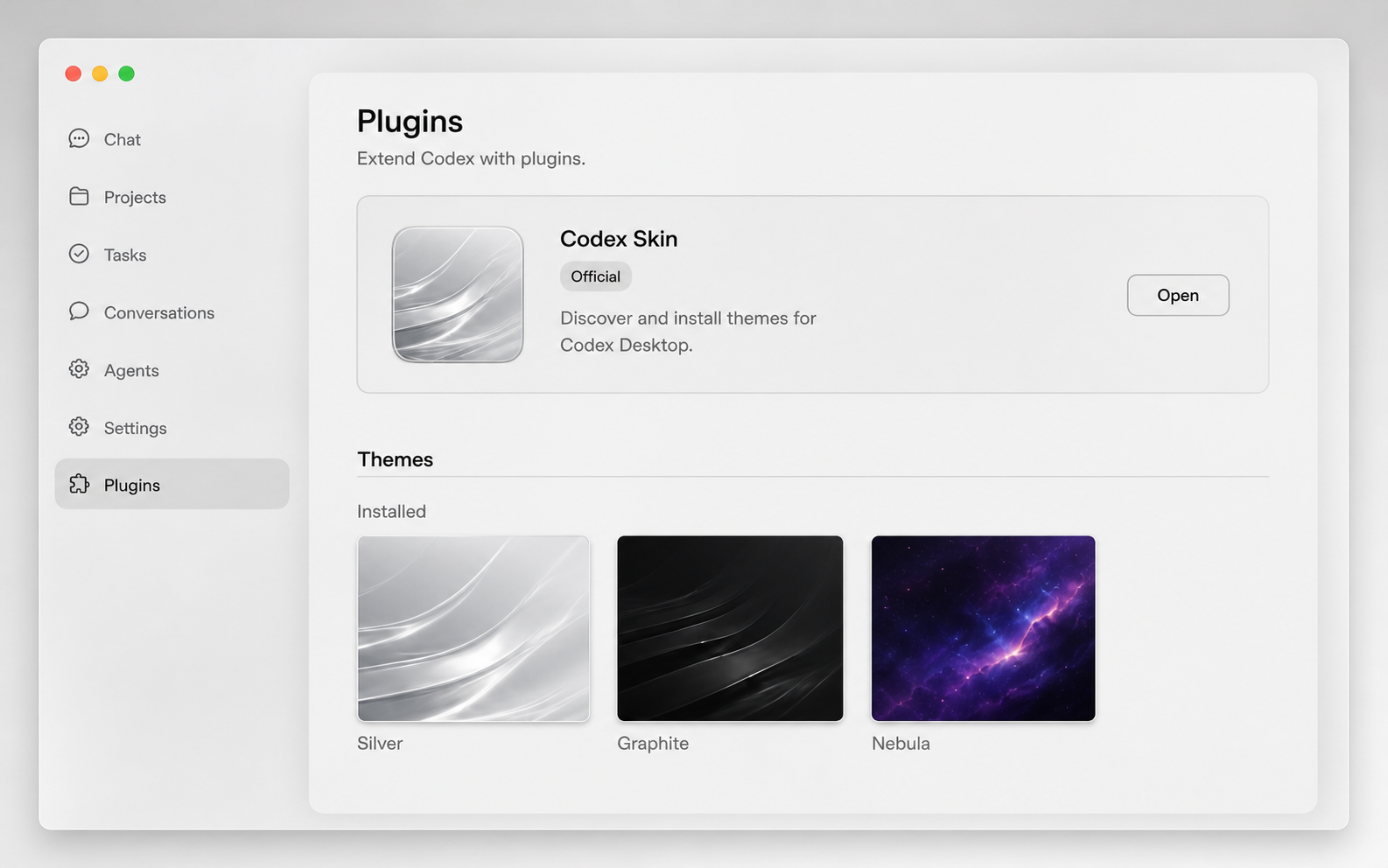
codex plugin marketplace add yuanjohn01-byte/codex-skin-plugin --ref main
codex plugin add codex-skin@codex-skin
codex plugin list --jsonApprove in the browser
When approval is required, the Plugin opens a short browser continuation. Approve the current device, then return to the same Codex task without choosing the theme again.
Return to the same Codex task and continue with the selected six-digit ID.
Nothing is applied. Start browser approval again when you are ready.
Start a new short-lived browser approval from the same Codex task.
Remove an old device in account settings before approving another.
Continue Free or unlock Pro
A Free Codex theme never requires payment. Pro includes all published Pro themes, new releases, compatible updates, switching, and reapplication during an active annual subscription. The regular price is US$19.90/year; the Launch Sale is US$9/year before applicable taxes.
An approved device can continue directly to the signed Free theme package.
Regularly US$19.90/year. The US$9 Launch Sale base price renews annually until canceled; applicable taxes are added at Checkout, and manual refund requests are available within seven days.
Apply or switch
Say “Apply theme 100002” or ask to switch to another published ID. The Plugin verifies the package and the visible result before it reports that the Codex theme is active.
Local boundaries
The Plugin does not need to read or upload your Codex conversations.
Theme packages do not read source code, project directories, or unrelated local files.
Published themes cannot execute JavaScript, CSS, Shell, or PowerShell.
After an app update
An update to the ChatGPT desktop app can change the Codex interface. Ask the Plugin to check and reapply your theme; it continues only when the current identity and required capabilities pass. Completely closing the app or restarting the computer also ends the active theme session.
Identity and capabilities pass, so the last verified Codex theme can be applied again.
Restart the desktop app or begin a new Codex task, then ask the Plugin to continue.
New theme apply pauses while the current interface change is reviewed.
Unknown identity, structure, or capability fails closed without deleting the recovery point.
Always keep the way back
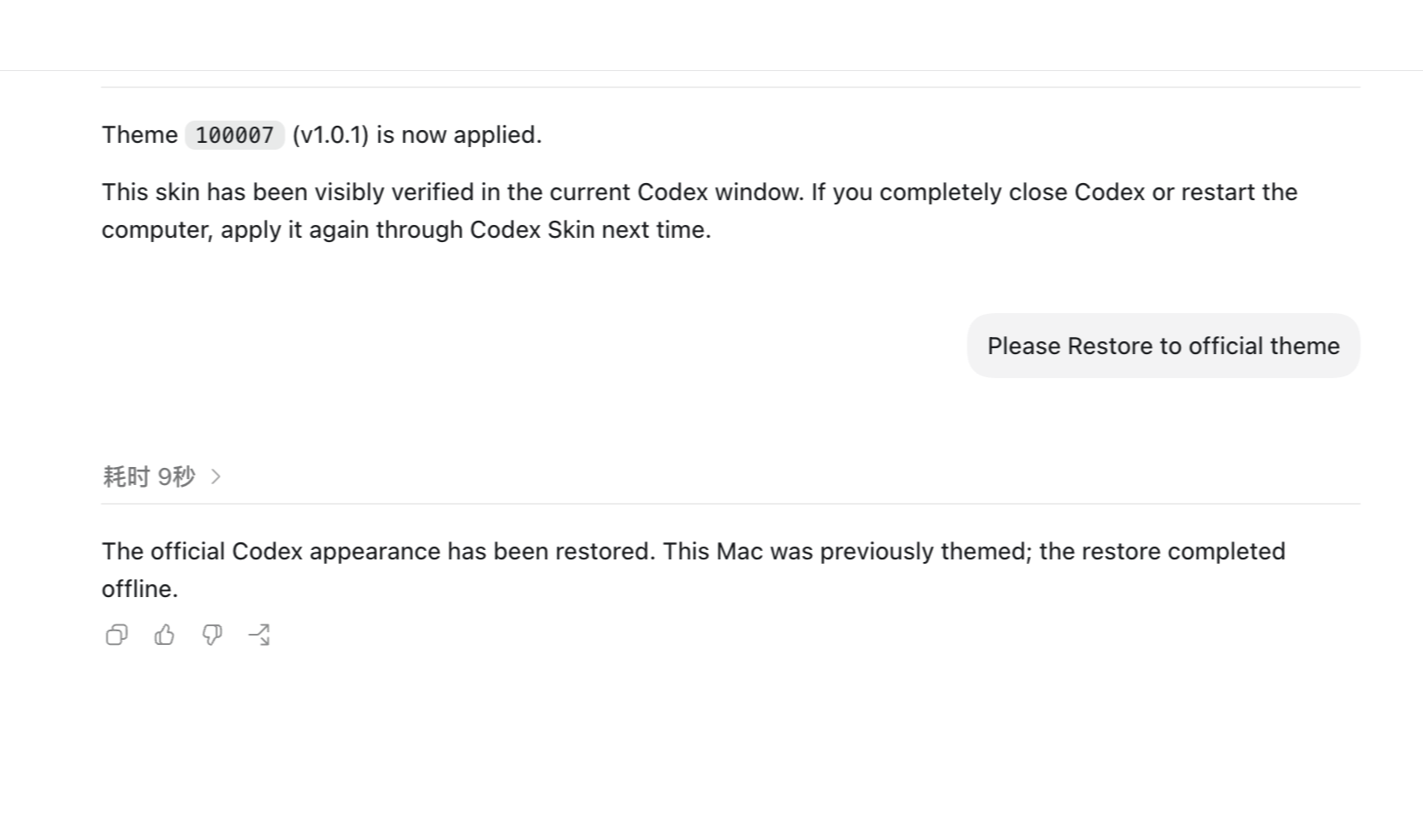
Restore works without network access, login, active Pro access, or the Plugin cache. The recovery point lives outside that cache, so expiry, refund, removal, or a failed update cannot take away the local way back.
When something stops
Run the verified setup, confirm one installed and enabled Plugin, then start a new Codex task.
Restart browser approval. The selected six-digit theme ID stays attached to the continuation.
New apply remains unavailable until compatibility is verified. The existing Restore path remains available.
The new package is not applied. Retry later or restore the previous verified state.
Common questions
Choose a published theme, copy its six-digit ID, install the free Codex Skin Plugin, approve the current device if prompted, and ask the Plugin to apply that ID in the same Codex task.
Choose before you apply
Browse the published gallery for a full preview, or review the free open-source Plugin before you install it.